
How to export trades from Webull
In the Webull desktop app open Account > History (Orders/Filled), set the date range and export to CSV.
Webull's app shows you a running P&L and very little else. There is no way to see whether your Monday mornings are profitable, whether your average loser is quietly twice your average winner, or which tickers you should stop trading entirely. Exporting your filled orders and journaling them answers all three in a few minutes.
This page covers the desktop export path (mobile cannot export), which columns TradeStack reads, how fills become round-turn trades, and the issues that come up with options, partial fills and the PDT rule.
Export filled orders rather than all orders — cancelled and rejected rows add noise without adding information.
Step by step
- 1Open the Webull desktop app (export is not available on mobile).
- 2Go to Account and open the History or Orders section.
- 3Filter to Filled orders and set your date range.
- 4Click Export and save as CSV.
- 5In TradeStack, click Import trades and drop the CSV in.
What TradeStack does with the file
Webull exports fills rather than round-turn trades. TradeStack pairs buys and sells per symbol to compute realized P&L.
Which columns TradeStack reads
You never map columns by hand. The importer fingerprints the Webull header row and reads the fields below; anything else in the file is carried along and stays editable on the trade.
| Export column | How it is used |
|---|---|
| Symbol / Name | Becomes the instrument. Option contracts import as their own symbols with the 100x multiplier applied. |
| Side (Buy, Sell, Short, Cover) | Sets direction and drives pairing of opening and closing fills. |
| Filled / Filled Qty | Share or contract count actually executed, which is what the trade uses — not the order quantity. |
| Avg Price / Price | Entry and exit price, averaged across partial fills on the same order. |
| Filled Time / Placed Time | Sets the timestamps; filled time is preferred because it reflects when you were actually in the market. |
| Commission / Fees | Subtracted from gross P&L where the export includes them, so totals match your statement. |
| Status | Used to discard cancelled, rejected and expired rows so they never count as trades. |
What the import looks like
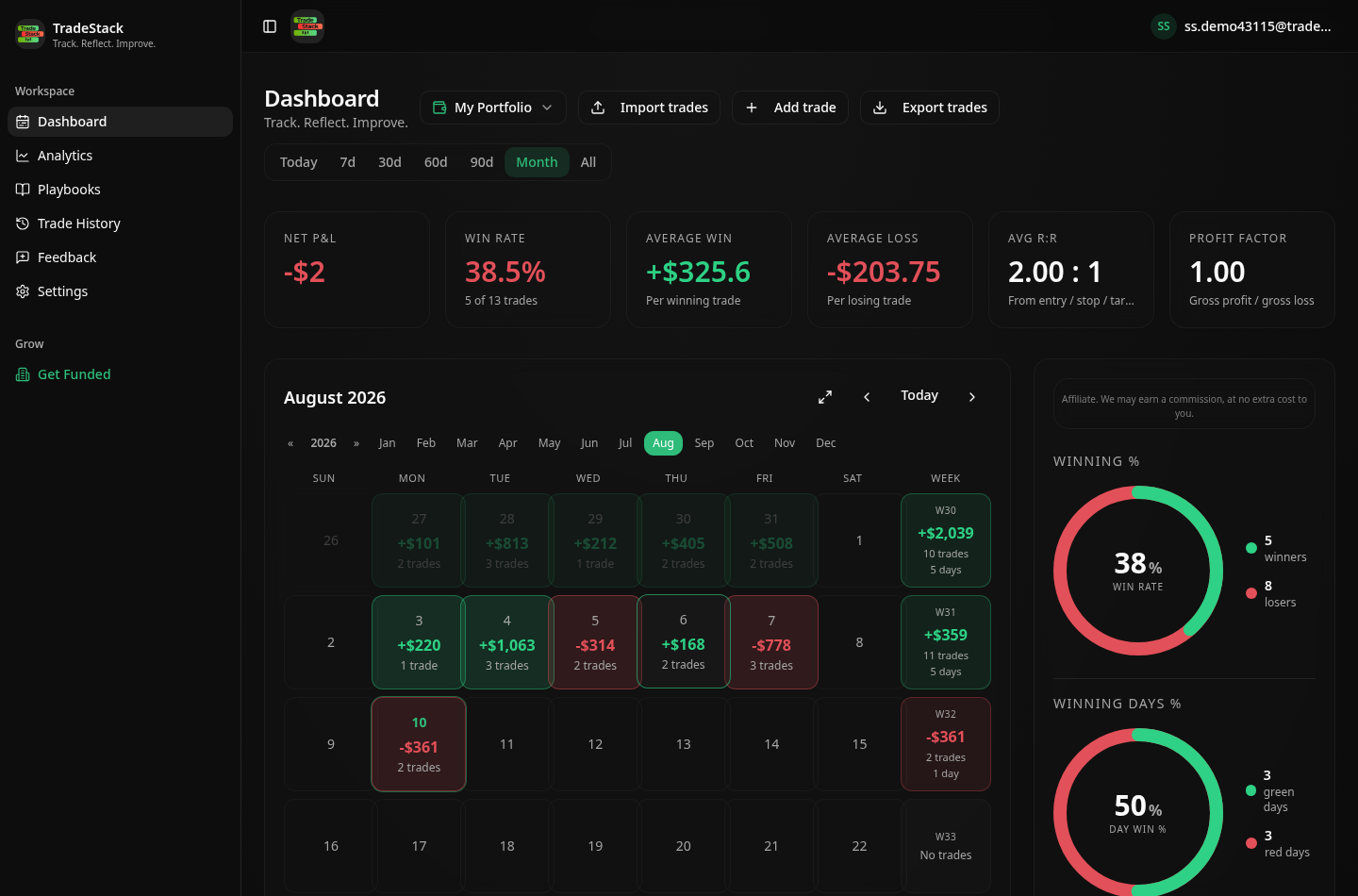
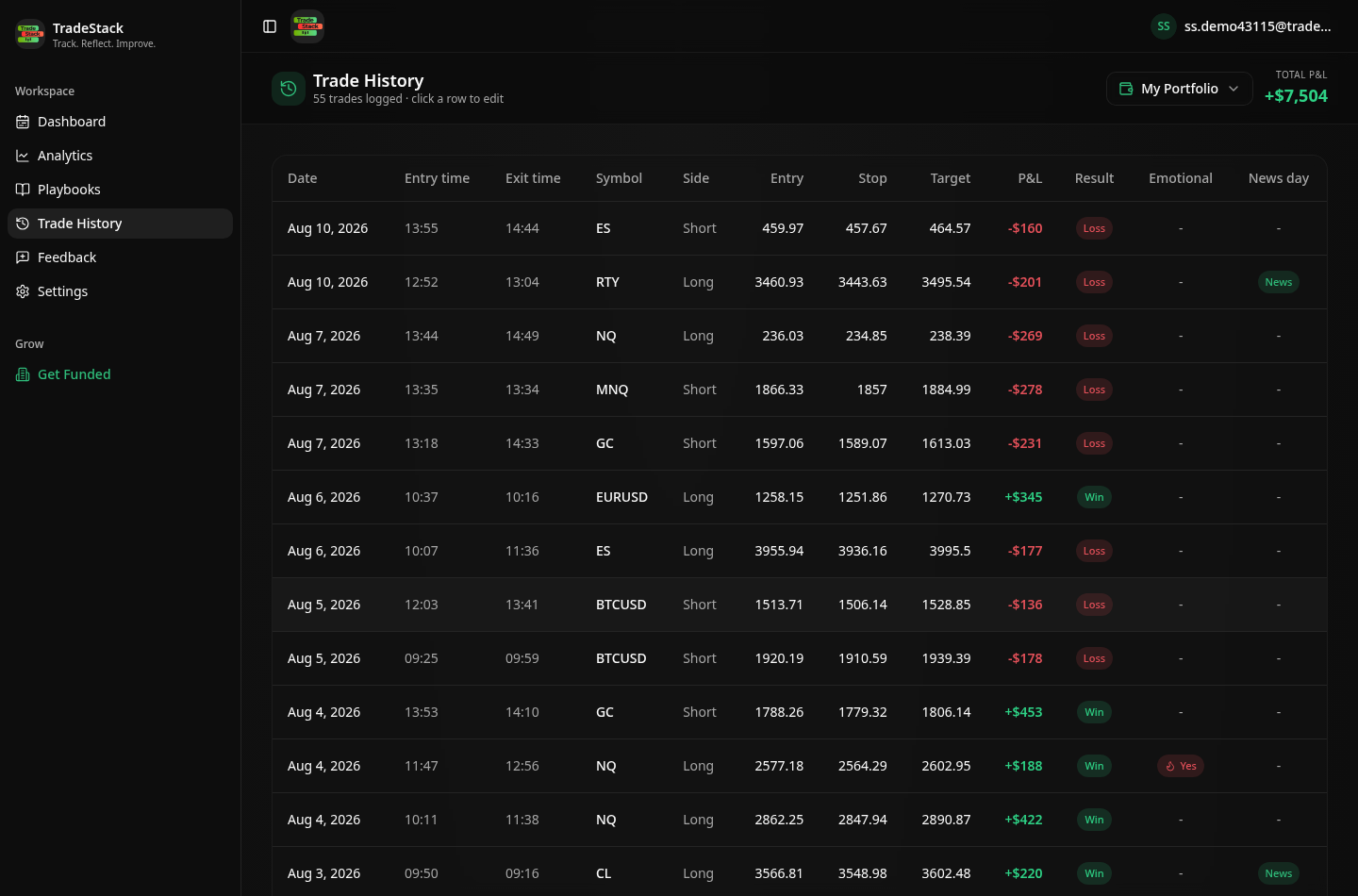
When the export does not look right
There is no export option in the app
Webull only offers CSV export on the desktop platform. Install the desktop app, open Account, then History, and export from there.
Cancelled orders imported as trades
Filter the history to Filled before exporting, or re-import after filtering — rows with a non-filled status are skipped.
One trade shows as several
Partial fills arrive as separate rows. They are combined per order and per position, so the trade list shows round turns even though the file shows fills.
Options P&L is wrong
Confirm the option symbol column is included in the export. Without the contract description the 100x multiplier cannot be applied.
Dates are shifted
Webull exports in US Eastern time. After-hours trades can appear on the neighbouring calendar day; drag the trade to the correct day in the journal if it matters to you.
Frequently asked
Can I export from the Webull app?
No. Use the desktop platform; mobile does not offer CSV export.
Do options trades import?
Yes, option contracts are imported as separate symbols.
Other broker guides
What to do with the data once it is in
TradeStack auto-detects your Webull export and builds your daily P&L calendar, win rate, profit factor and expectancy. Free forever, no card required.
Start free