How to export trades from Tradovate
In Tradovate, open your username menu, go to Settings, choose Account Balance History, pick a date range and click Download CSV. Drop that file into TradeStack.
Tradovate is the platform most futures prop firms hand you on day one, and it is built for order entry rather than review. You can see today's realized P&L and a list of fills, but you cannot see how Tuesday compared with the Tuesday before, whether your losing days cluster around the open, or what your expectancy actually is across a hundred trades. Exporting a CSV takes about a minute and gives you all of that.
This page covers the exact click path inside Tradovate, which columns the file contains, how TradeStack turns the export into a daily P&L calendar, and the handful of things that commonly go wrong on evaluation accounts.
The same steps work for live funded accounts and for simulated evaluation accounts. If you trade several accounts at a prop firm, export each one separately and keep them in separate portfolios so the drawdown maths stays honest.
Step by step
- 1Log in to your Tradovate account.
- 2Choose Simulated Trading if you are on a prop firm evaluation account.
- 3Click your username at the top middle of the screen, above the chart.
- 4Click Settings right next to it.
- 5Click Account Balance History on the far right.
- 6Choose your date range (today, this week, this month or this year).
- 7Click Download CSV.
- 8Open TradeStack, click Import trades and drop the CSV in.
What TradeStack does with the file
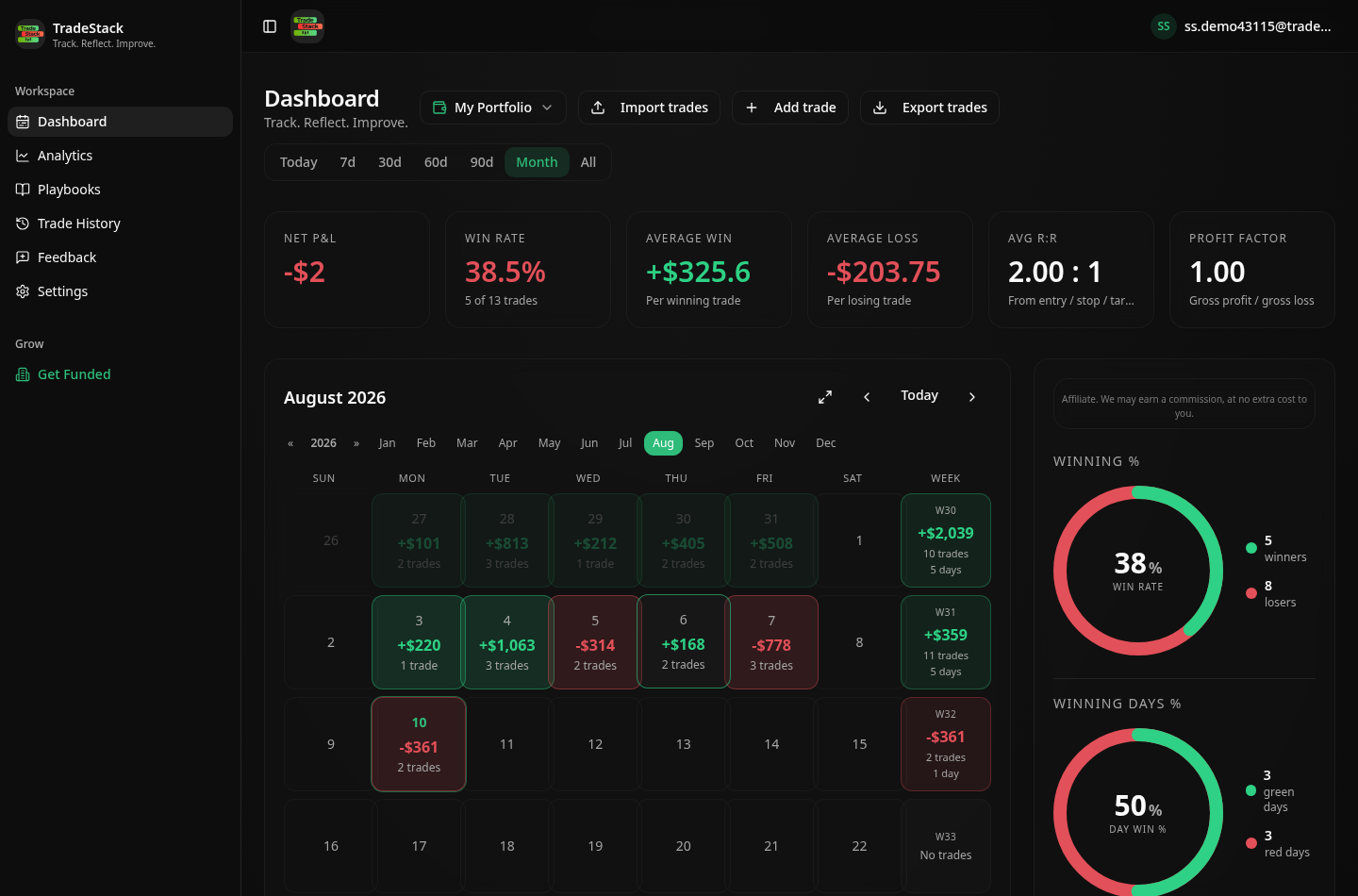
Tradovate's Account Balance History gives daily realized P&L, which fills the daily P&L calendar. Trades can take a minute to appear after import.
Which columns TradeStack reads
You never map columns by hand. The importer fingerprints the Tradovate header row and reads the fields below; anything else in the file is carried along and stays editable on the trade.
| Export column | How it is used |
|---|---|
| Date | Sets the trading day on the P&L calendar. Tradovate reports in the account's session timezone, so late-evening fills can land on the next session date. |
| Symbol / Contract | Identifies the instrument. Futures roots such as ES, NQ, MES, MNQ, CL and GC are recognised so the correct tick value and multiplier are applied. |
| B/S (Buy or Sell) | Sets direction and tells the pairing engine which fills open a position and which close it. |
| Quantity / Filled Qty | Contract count. Several partial fills on one order are combined into a single entry rather than counted as separate trades. |
| Price / Avg Price | Entry and exit price. Where several fills close one position, the size-weighted average is used. |
| Commission and Fees | Subtracted from gross P&L so your journal total matches the Tradovate statement, including exchange and NFA fees. |
| P/L | Used directly when present. When it is missing, TradeStack recomputes realized P&L from price, quantity and multiplier. |
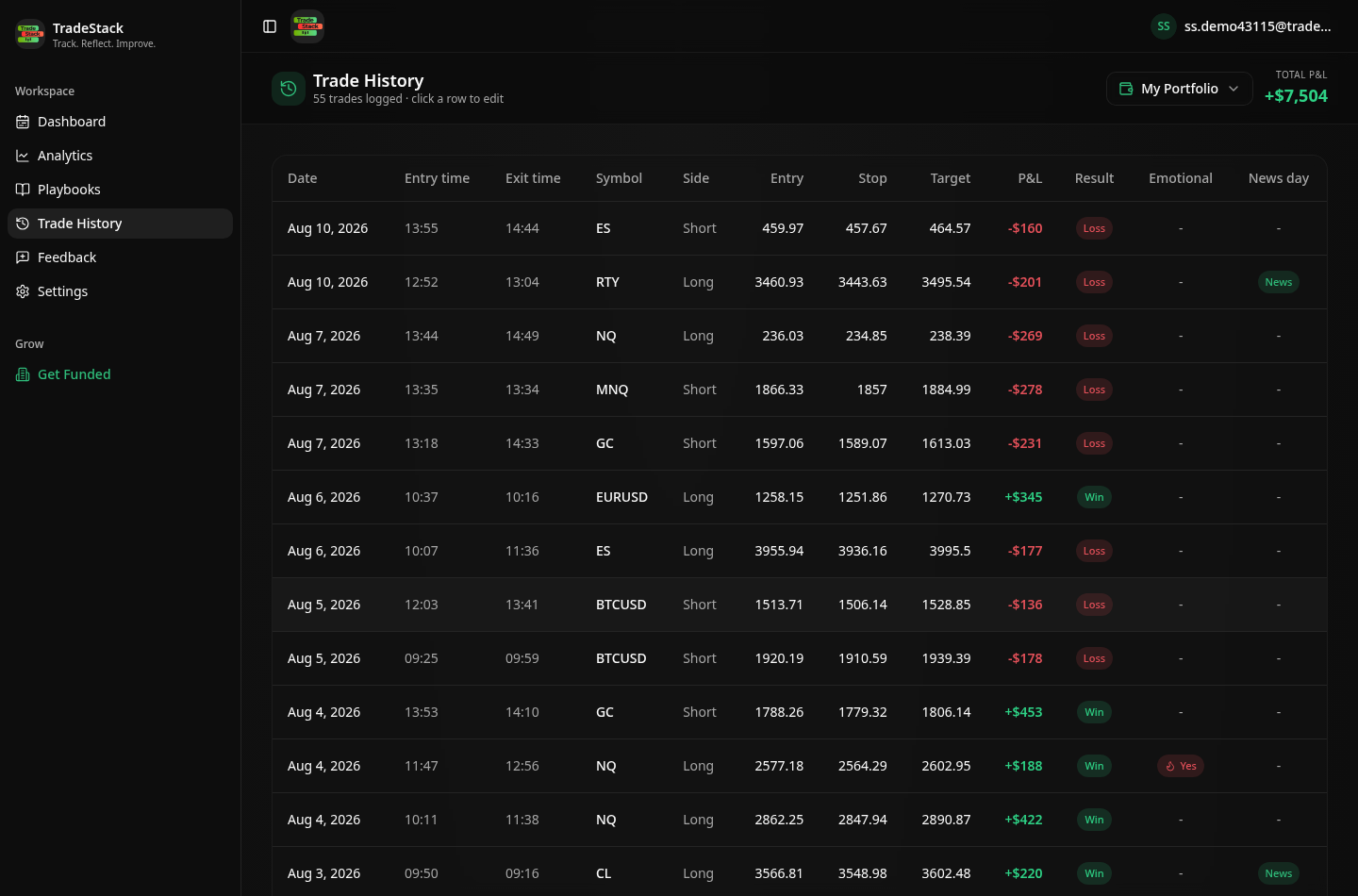
What the import looks like
When the export does not look right
The download button does nothing
Tradovate downloads through the browser. Disable the popup blocker for the Tradovate tab, or try the web platform instead of the desktop wrapper, then download again.
I only see today's numbers
The date selector defaults to the current session. Switch it to this month or this year before clicking Download CSV.
My evaluation account is missing
Switch the platform into Simulated Trading using the account switcher at the top before opening Settings; the export follows whichever mode is active.
P&L is far smaller than the platform shows
The symbol column did not make it into the file. Without it the contract multiplier cannot be applied, so a 10 point ES move looks like $10 instead of $500. Re-export with all columns visible in the grid.
Trades imported twice
Re-importing the same range is safe: duplicate rows are detected and skipped, so your notes, screenshots and playbook tags stay attached.
Frequently asked
Does this work for prop firm Tradovate accounts?
Yes. Switch to the simulated/evaluation account first, then export the same way.
Is Tradovate import free in TradeStack?
Yes. Imports are unlimited and free.
Other broker guides
What to do with the data once it is in
TradeStack auto-detects your Tradovate export and builds your daily P&L calendar, win rate, profit factor and expectancy. Free forever, no card required.
Start free