
How to export trades from MetaTrader 4 / MetaTrader 5
In the Terminal (MT4) or Toolbox (MT5) History tab, right-click and choose Save as Report / Report > HTML or CSV, then drop the file into TradeStack.
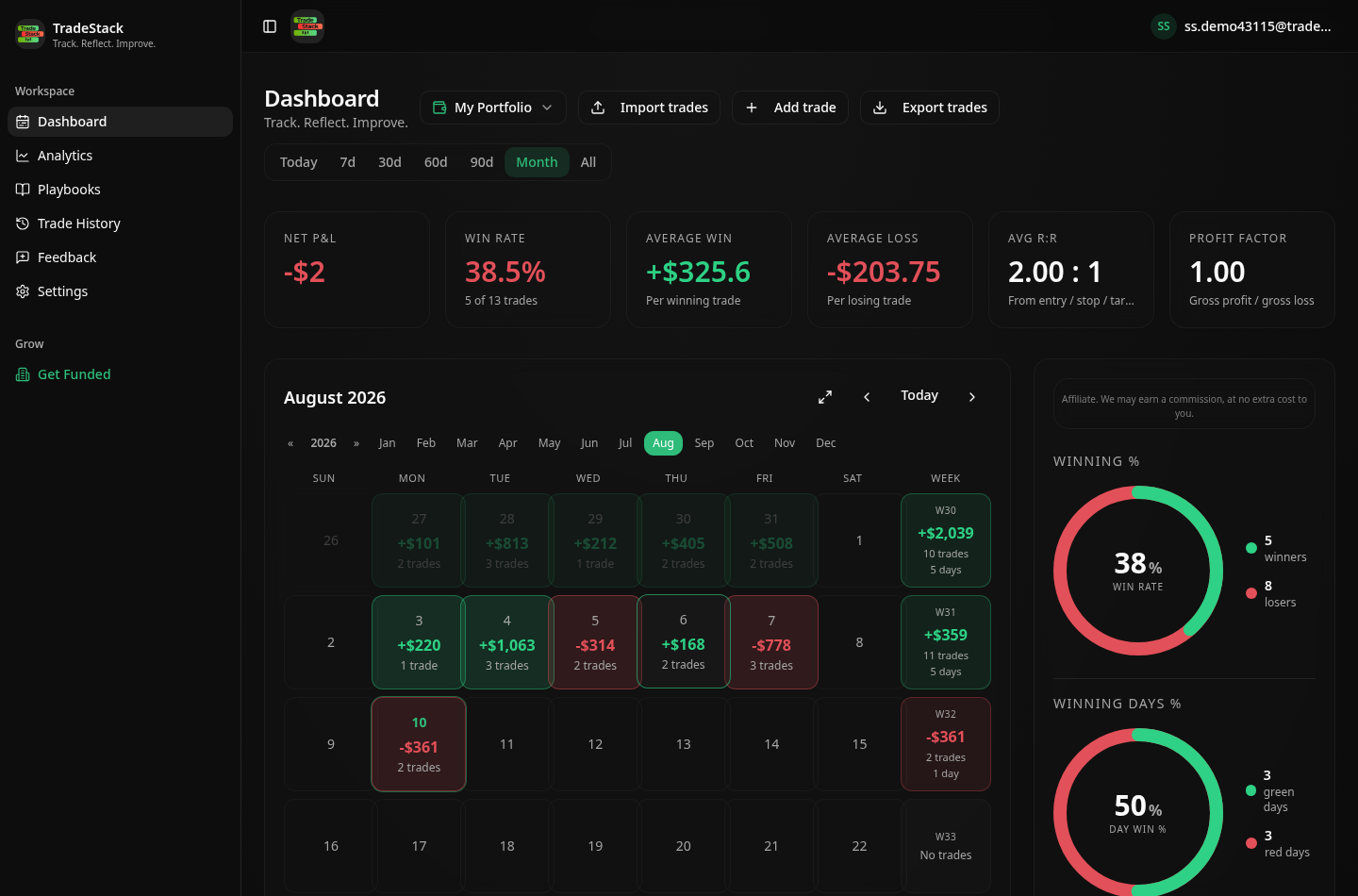
MetaTrader gives you an account statement, and the statement is a wall of rows. It has every deal, every swap and every balance operation in one table, which is exactly why most traders never review it. Once the same data sits in a journal you get a daily P&L calendar, a win rate that excludes deposits, and expectancy per symbol and per session.
This page covers the export path in both MT4 and MT5, what TradeStack reads out of the report, and the quirks specific to MetaTrader: hedging accounts, partial closes, swaps on positions held overnight, and brokers who report commissions on a separate row.
Both the HTML detailed report and the CSV/XLSX exports are supported, so use whichever your broker's build offers.
Step by step
- 1Open MetaTrader and go to the Terminal (MT4) or Toolbox (MT5) panel.
- 2Click the Account History (MT4) or History (MT5) tab.
- 3Right-click inside the list and set the period you want (All History works).
- 4Choose Save as Detailed Report (MT4) or Report > HTML/XLSX (MT5).
- 5Save the file to your computer.
- 6In TradeStack, click Import trades and drop the file in.
What TradeStack does with the file
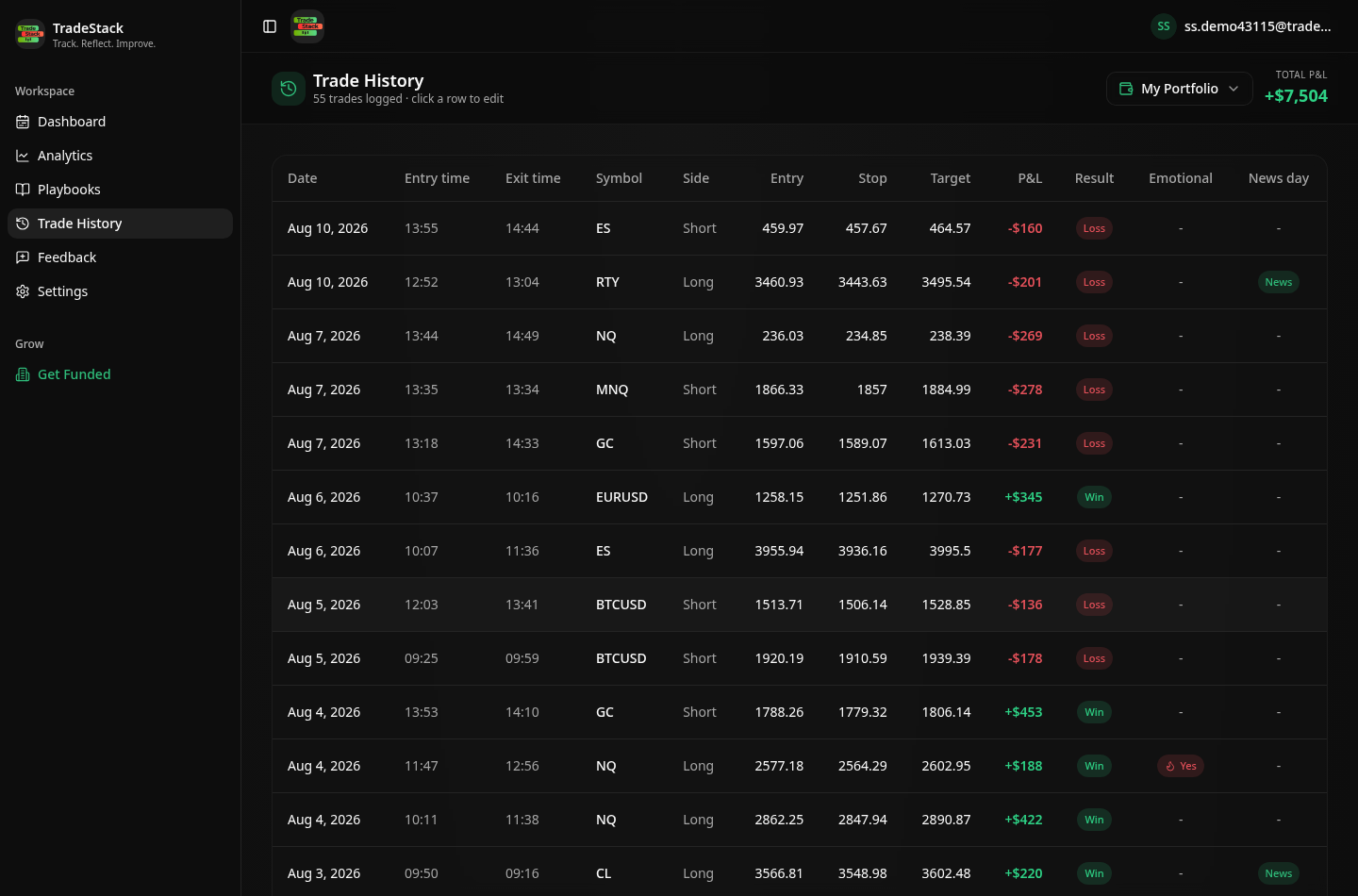
TradeStack reads both MetaTrader HTML statements and CSV exports, including swap and commission columns, so net P&L matches your broker.
Which columns TradeStack reads
You never map columns by hand. The importer fingerprints the MetaTrader 4 / MetaTrader 5 header row and reads the fields below; anything else in the file is carried along and stays editable on the trade.
| Export column | How it is used |
|---|---|
| Symbol | Becomes the instrument. FX pairs, metals, indices and crypto CFDs are all recognised, including broker suffixes such as EURUSD.pro. |
| Type (buy / sell) | Sets direction. Balance, credit and deposit rows are identified and excluded so they do not distort win rate. |
| Volume / Lots | Position size in lots, kept as reported so risk per trade stays comparable across symbols. |
| Open price / Close price | The entry and exit prices used for the trade and for R-multiple calculations when a stop is recorded. |
| Open time / Close time | Sets the entry and exit timestamps. The close time decides which day the result lands on in the calendar. |
| Commission, Swap, Taxes | Applied to realized P&L so the journal total matches the broker's net figure on positions held overnight. |
| Profit | Used as the realized result for the deal, net of the fee columns above. |
What the import looks like
When the export does not look right
The report saved as HTML and I expected CSV
Both work. Drop the .htm or .html detailed report straight in; TradeStack reads the MetaTrader report tables directly.
My balance is right but the win rate looks wrong
Balance operations were counted as trades in whatever tool you used before. TradeStack filters deposits, withdrawals and credits out of the statistics automatically.
Partial closes show as several trades
On MT5 netting accounts a partial close creates a separate deal. Those deals are grouped back into the parent position so one position counts once.
Swap makes my P&L differ from the platform
Swap is applied to the day the position closed, not the day it accrued. Totals match; the day-by-day split can differ slightly for multi-day holds.
Only recent trades exported
Right-click inside the History tab and choose All History before saving the report; the default period is the current month.
Frequently asked
Does TradeStack read the MT4 HTML statement?
Yes. Both the MT4 detailed report and MT5 report formats are auto-detected.
Are swaps and commissions included?
Yes, they are applied to realized P&L when present in the export.
Other broker guides
What to do with the data once it is in
TradeStack auto-detects your MetaTrader 4 / MetaTrader 5 export and builds your daily P&L calendar, win rate, profit factor and expectancy. Free forever, no card required.
Start free