
How to export trades from NinjaTrader
Open Control Center, go to the Trade Performance tab, select your account and date range, right-click the Trades grid and choose Export.
NinjaTrader's Trade Performance tab is genuinely good at summary statistics and genuinely bad at showing you patterns over time. It will tell you your profit factor for a period; it will not tell you that every one of your worst days started with a revenge trade in the first ten minutes. Exporting the executions and journaling them gives you the day-level and setup-level view the platform leaves out.
Below is the click path in the Control Center, what each exported column does, how partial fills become round-turn trades, and the export problems that come up most often with sim and funded accounts.
This works identically for NinjaTrader 8 sim accounts, live brokerage accounts and prop firm accounts routed through NinjaTrader.
Step by step
- 1Open the NinjaTrader Control Center.
- 2Go to the Trade Performance tab (or New > Trade Performance).
- 3Select the account and the date range you want.
- 4Open the Trades sub-tab so individual executions are listed.
- 5Right-click inside the grid and choose Export.
- 6Save as CSV with column headers included.
- 7In TradeStack, click Import trades and drop the CSV in.
What TradeStack does with the file
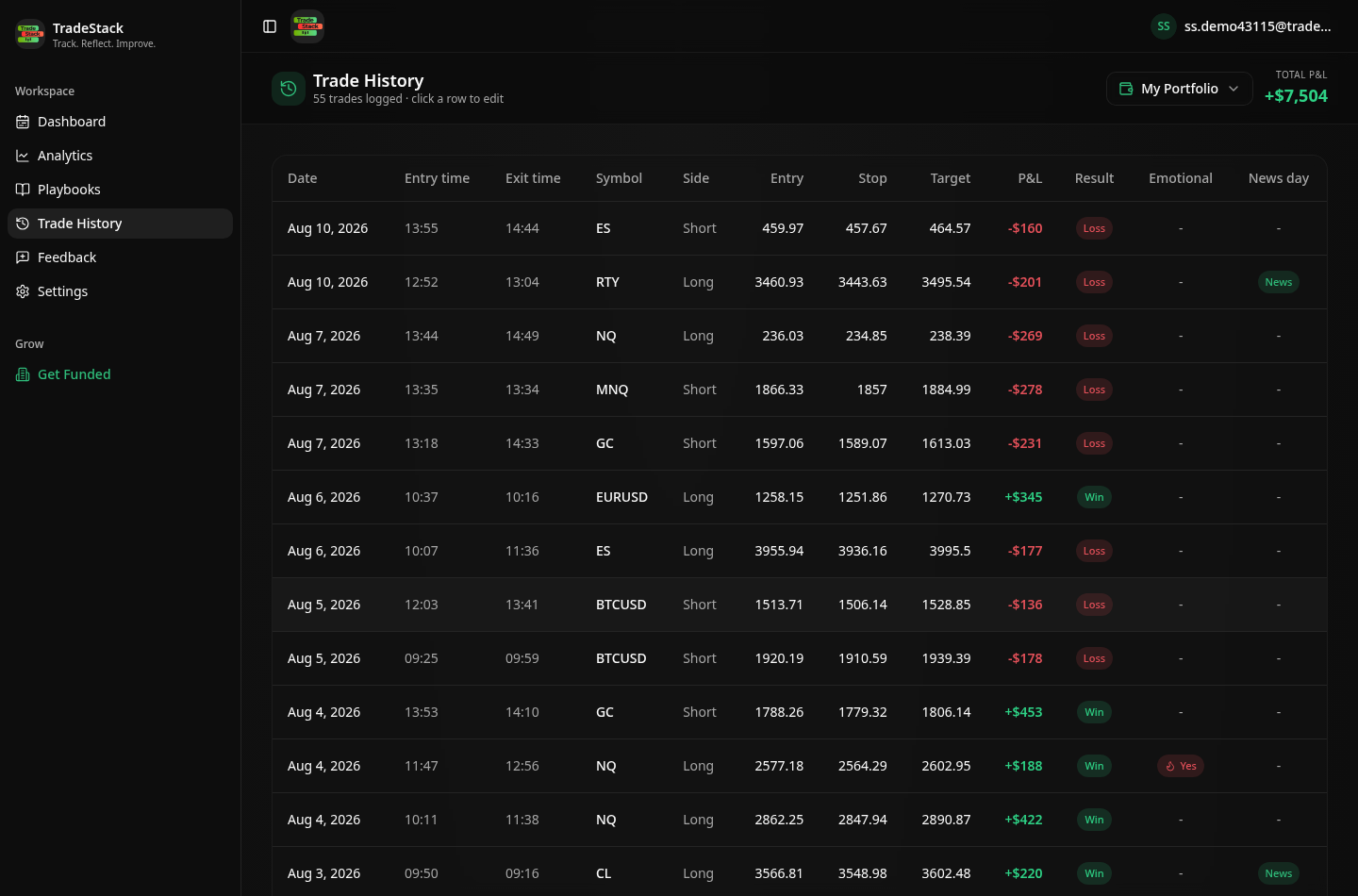
NinjaTrader exports individual executions. TradeStack pairs partial fills into round-turn trades automatically and calculates realized P&L per trade.
Which columns TradeStack reads
You never map columns by hand. The importer fingerprints the NinjaTrader header row and reads the fields below; anything else in the file is carried along and stays editable on the trade.
| Export column | How it is used |
|---|---|
| Instrument | Becomes the trade symbol. Futures roots including ES, NQ, MES, MNQ, RTY, CL and GC are recognised and the contract multiplier is applied automatically. |
| Market position / Action | Sets long or short and drives the pairing of opening and closing executions. |
| Quantity | Contract or share count. Partial fills belonging to the same position are combined. |
| Entry price / Exit price | Used for the trade prices and, where several fills are involved, averaged by size. |
| Entry time / Exit time | Sets the timestamps that feed the daily calendar and the holding-time statistics. |
| Commission | Subtracted from gross P&L so the journal matches your broker statement. |
| Profit | Used when the export includes realized profit; otherwise it is recomputed from price, size and multiplier. |
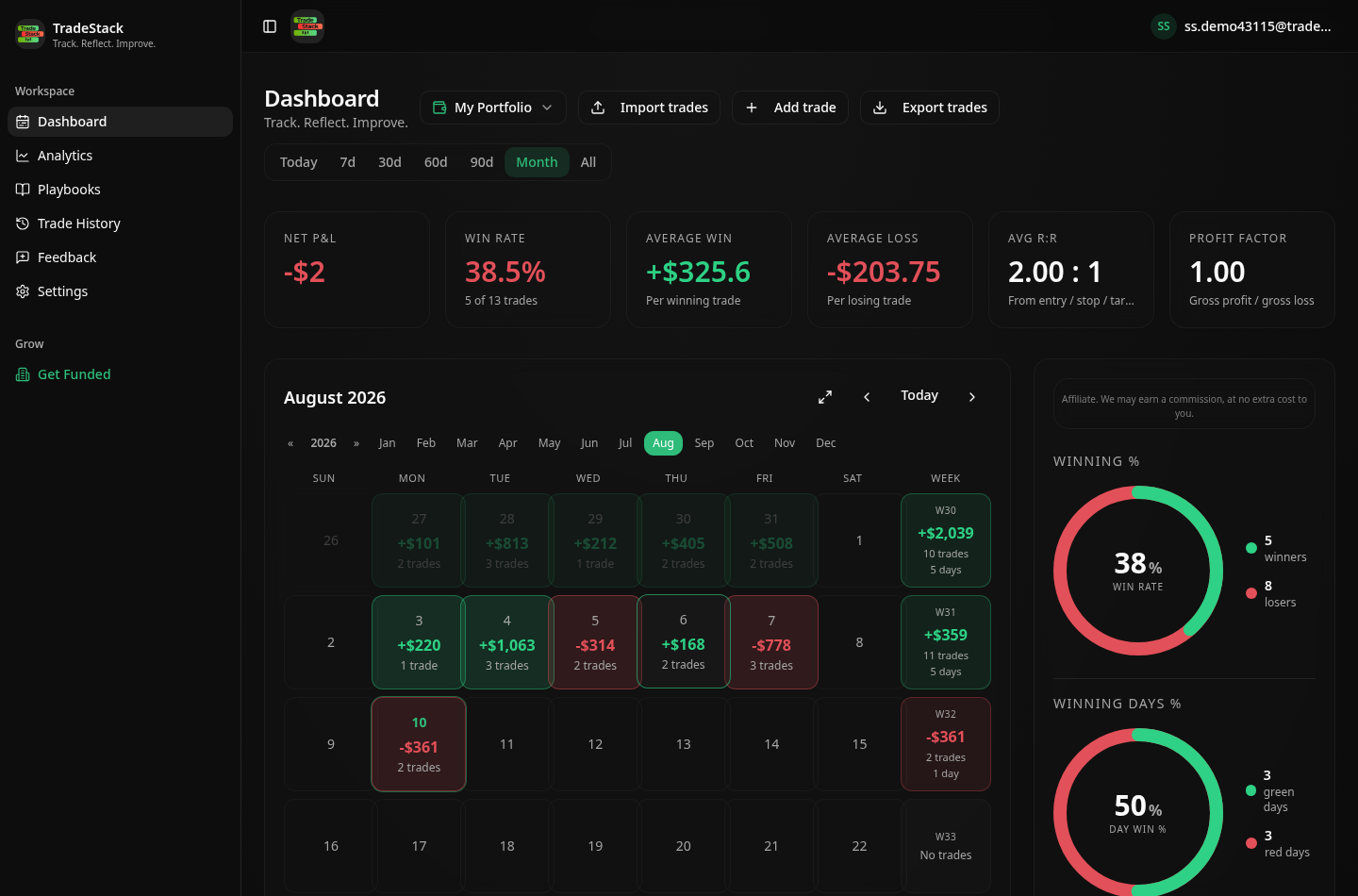
What the import looks like
When the export does not look right
Export is greyed out
You are on the summary sub-tab. Open the Trades or Executions sub-tab first, click once inside the grid, then right-click and choose Export.
The file has no header row
In the export dialog tick the option to include column headers. Without headers the format cannot be fingerprinted and the import falls back to manual mapping.
Every fill became its own trade
That is expected in the Executions view. TradeStack pairs opposing executions per instrument automatically, so the trade list will show round turns even though the file shows fills.
Sim and live trades are mixed together
Select a single account in the Trade Performance filter before exporting, then import each account into its own portfolio.
P&L is in points, not currency
NinjaTrader can display performance in points or currency. Switch the display to currency before exporting so the imported values match your account.
Frequently asked
Sim or live accounts?
Both export the same way and both import fine.
Do I need to map columns?
No. The importer detects the NinjaTrader header layout automatically.
Other broker guides
What to do with the data once it is in
TradeStack auto-detects your NinjaTrader export and builds your daily P&L calendar, win rate, profit factor and expectancy. Free forever, no card required.
Start free