
How to export trades from cTrader
Open the History tab in cTrader, set the period, then use the export icon to save the statement as CSV or XLSX.
cTrader gives forex and CFD traders a clean history tab and no way to analyse it. You can see closed positions; you cannot see whether your London session is carrying your New York session, or what your expectancy per pair actually is. Exporting the statement and journaling it turns that list into a daily P&L calendar and per-symbol statistics.
This page covers the export path in cTrader Desktop and cTrader Web, which columns are read, and the details specific to cTrader: partial closes, swap on multi-day holds, and brokers who report commission in the account currency rather than the symbol currency.
The same steps work for any cTrader broker and for demo accounts, so you can journal a demo run before going live.
Step by step
- 1Open cTrader Desktop or cTrader Web.
- 2Go to the History tab at the bottom of the platform.
- 3Set the period you want to export.
- 4Click the export icon and choose CSV (or XLSX).
- 5In TradeStack, click Import trades and drop the file in.
What TradeStack does with the file
cTrader statements include commission and swap columns, which TradeStack applies so your journal P&L matches your account.
Which columns TradeStack reads
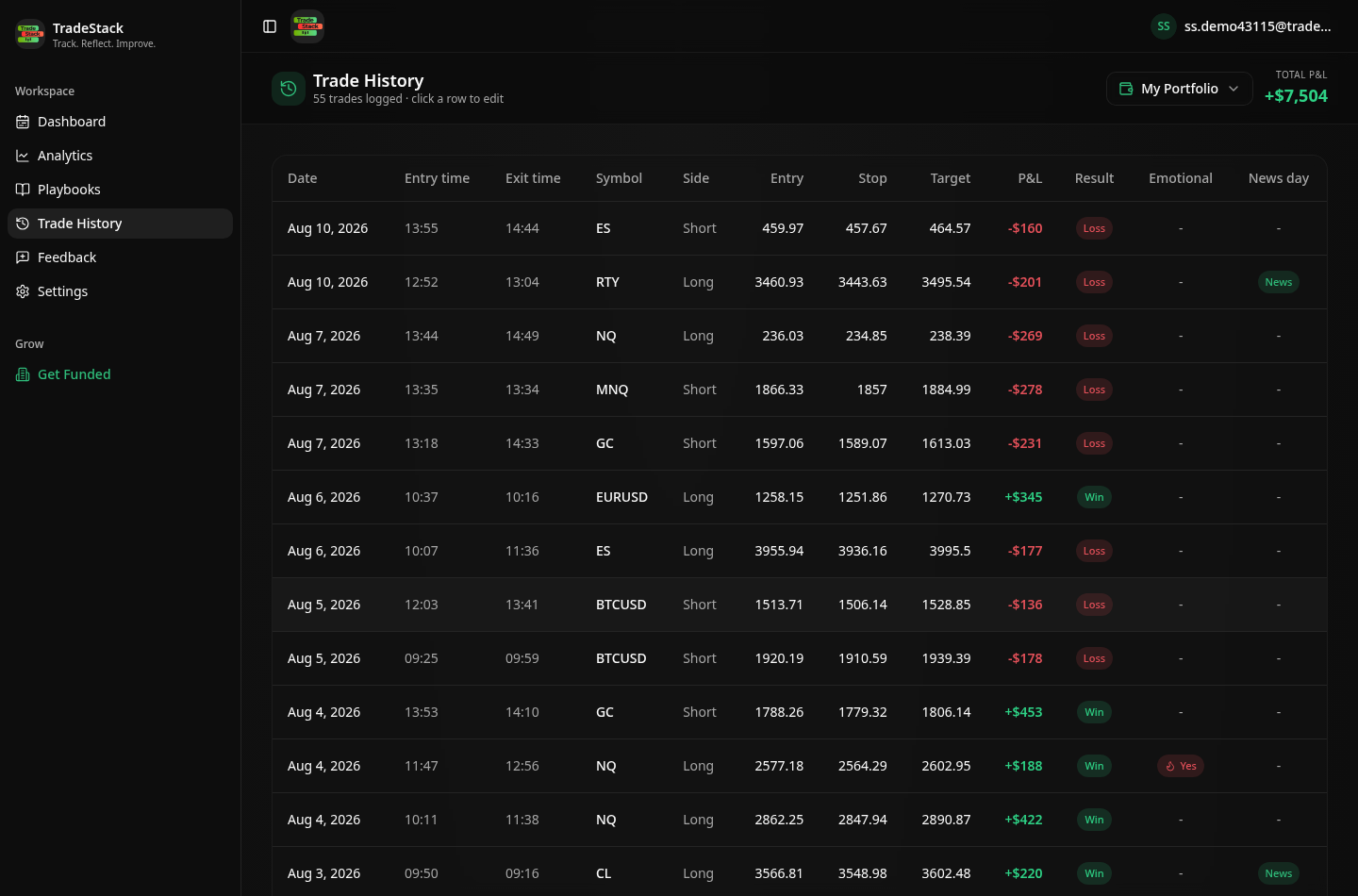
You never map columns by hand. The importer fingerprints the cTrader header row and reads the fields below; anything else in the file is carried along and stays editable on the trade.
| Export column | How it is used |
|---|---|
| Symbol | Becomes the instrument, including broker suffixes on FX pairs, metals, indices and crypto CFDs. |
| Direction / Type (buy, sell) | Sets long or short for the position. |
| Volume / Lots | Position size in lots, kept as reported so risk stays comparable across symbols. |
| Entry price / Closing price | Used as trade prices and for R-multiple calculations when a stop level is recorded. |
| Entry time / Closing time | Sets the timestamps; the closing time decides the calendar day for the result. |
| Commission and Swap | Applied to realized P&L so overnight holds match the broker's net figure. |
| Net P&L / Gross P&L | Net is used when present; otherwise gross is taken and the fee columns subtracted. |
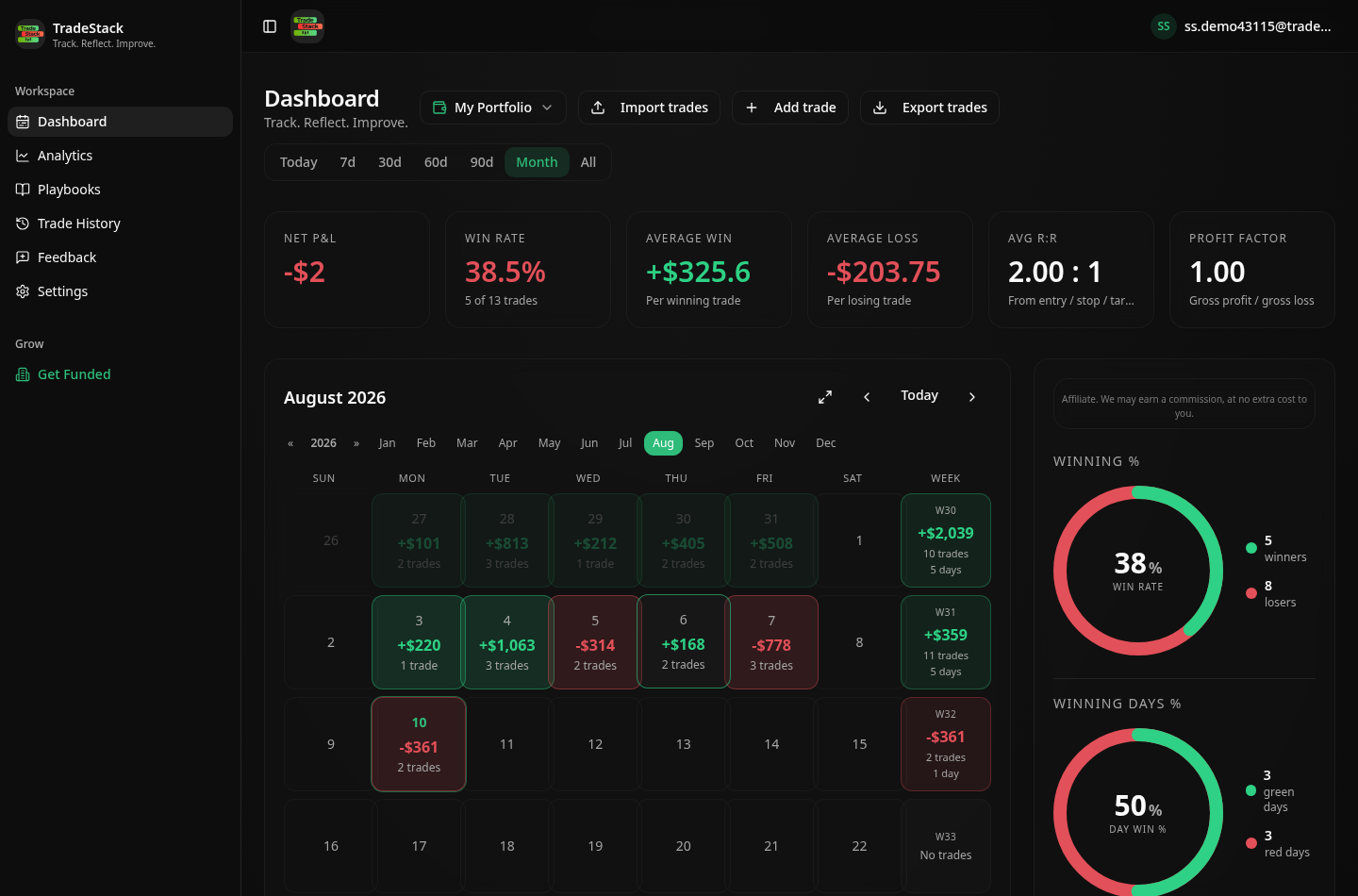
What the import looks like
When the export does not look right
The export downloads as XLSX
That is fine — cTrader's statement imports either way. If your build only offers XLSX, open it and save as CSV UTF-8 if the import ever stalls.
Partial closes appear as separate rows
They are grouped back into the parent position, so one position counts once in win rate and expectancy.
Swap makes days disagree with the platform
Swap is applied on the closing day rather than the day it accrued. Period totals match; individual days on multi-day holds can differ.
Deposits show up in the statistics
Balance operations are identified and excluded from win rate and expectancy, so only real trades count.
Only the last month exported
Set the period selector to a custom range covering everything you want before clicking export.
Frequently asked
Does cTrader Web export?
Yes, the History tab exports the same statement as the desktop app.
Are partial closes handled?
Yes, partial closes are combined into the parent position.
Other broker guides
What to do with the data once it is in
TradeStack auto-detects your cTrader export and builds your daily P&L calendar, win rate, profit factor and expectancy. Free forever, no card required.
Start free