How to export trades from Interactive Brokers (IBKR)
In Client Portal go to Performance & Reports, run an Activity Statement or a Trades Flex Query, and download it as CSV.
Interactive Brokers produces the most complete trade records of any retail broker and the least readable ones. An Activity Statement bundles trades, dividends, interest, corporate actions and currency conversions into one file with a dozen sections. What you want out of it is the executions, and what you want from those is a day-by-day picture of how you actually traded.
This page covers both routes — a Trades Flex Query and a standard Activity Statement — what TradeStack reads from each, and the IBKR-specific issues around multi-currency accounts, the removed P/L field in newer Flex Query templates, and options multipliers.
If you plan to export regularly, build the Flex Query once: it produces a clean, stable file with only the columns that matter.
Step by step
- 1Log in to the IBKR Client Portal.
- 2Open Performance & Reports > Statements (or Flex Queries).
- 3Create or run a Trades Flex Query, or select an Activity Statement.
- 4Set the date period and choose CSV as the format.
- 5Download the file.
- 6In TradeStack, click Import trades and drop the CSV in.
What TradeStack does with the file
IBKR statements contain several sections. TradeStack locates the trades section, reads commissions and realized P&L, and skips the rest.
Which columns TradeStack reads
You never map columns by hand. The importer fingerprints the Interactive Brokers (IBKR) header row and reads the fields below; anything else in the file is carried along and stays editable on the trade.
| Export column | How it is used |
|---|---|
| Symbol / Description | Becomes the instrument. Stocks, futures and option contracts are each recognised, with the option multiplier applied to contract sizes. |
| Buy/Sell | Sets direction and pairs opening executions with closing ones. |
| Quantity | Share or contract count. Multiple partial executions on one order are combined. |
| TradePrice | Entry and exit price, size-weighted where an order filled in several pieces. |
| DateTime / TradeDate | Sets timestamps and the calendar day for the result. |
| IBCommission and fees | Subtracted from gross P&L so the journal matches your statement; IBKR reports these as negative numbers and the sign is handled. |
| FifoPnlRealized | Used as realized P&L when the template includes it. When it is absent, P&L is recomputed by pairing executions FIFO. |
| CurrencyPrimary | Recorded per trade so multi-currency accounts stay readable; values import as reported rather than being converted. |
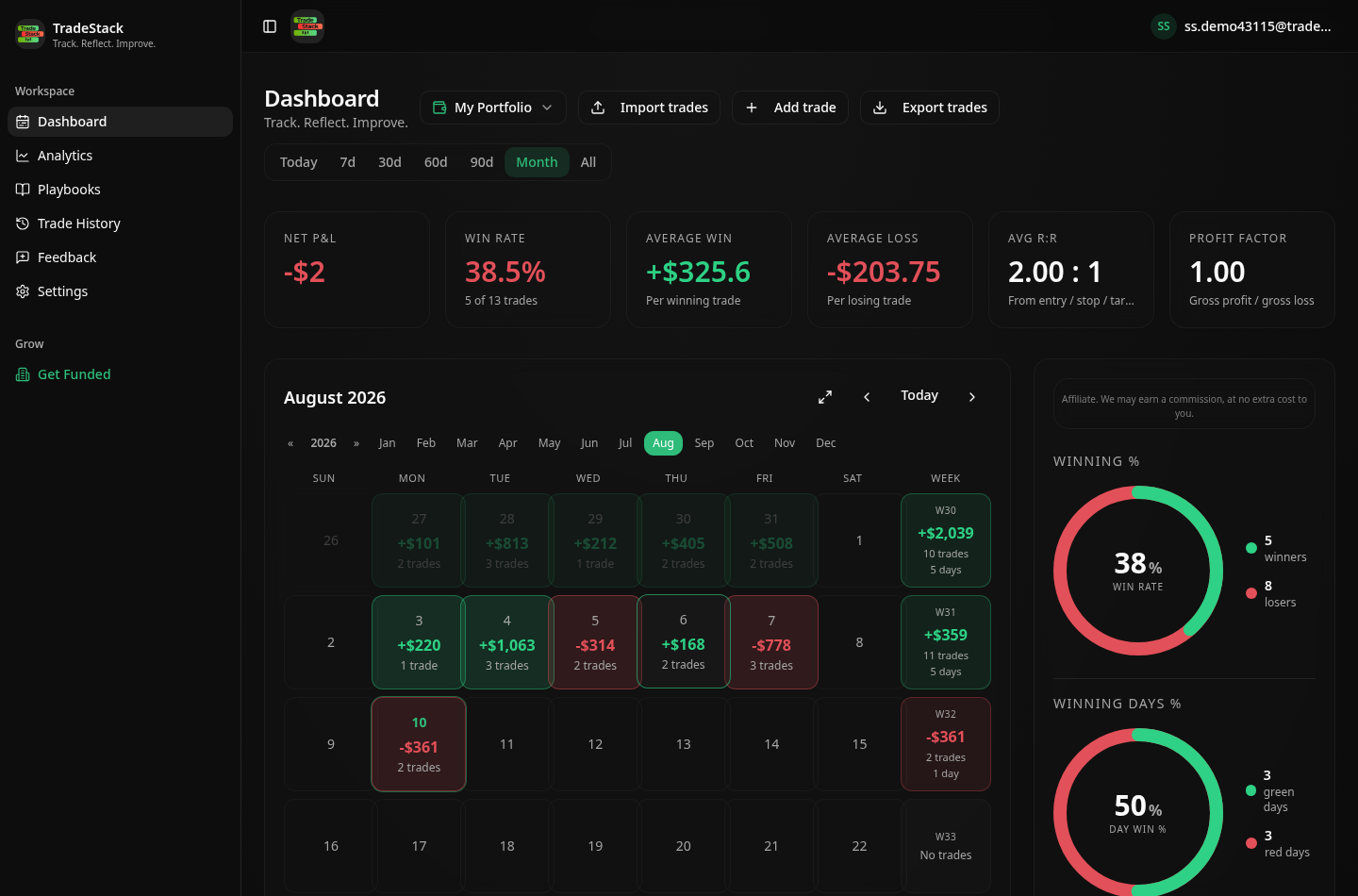
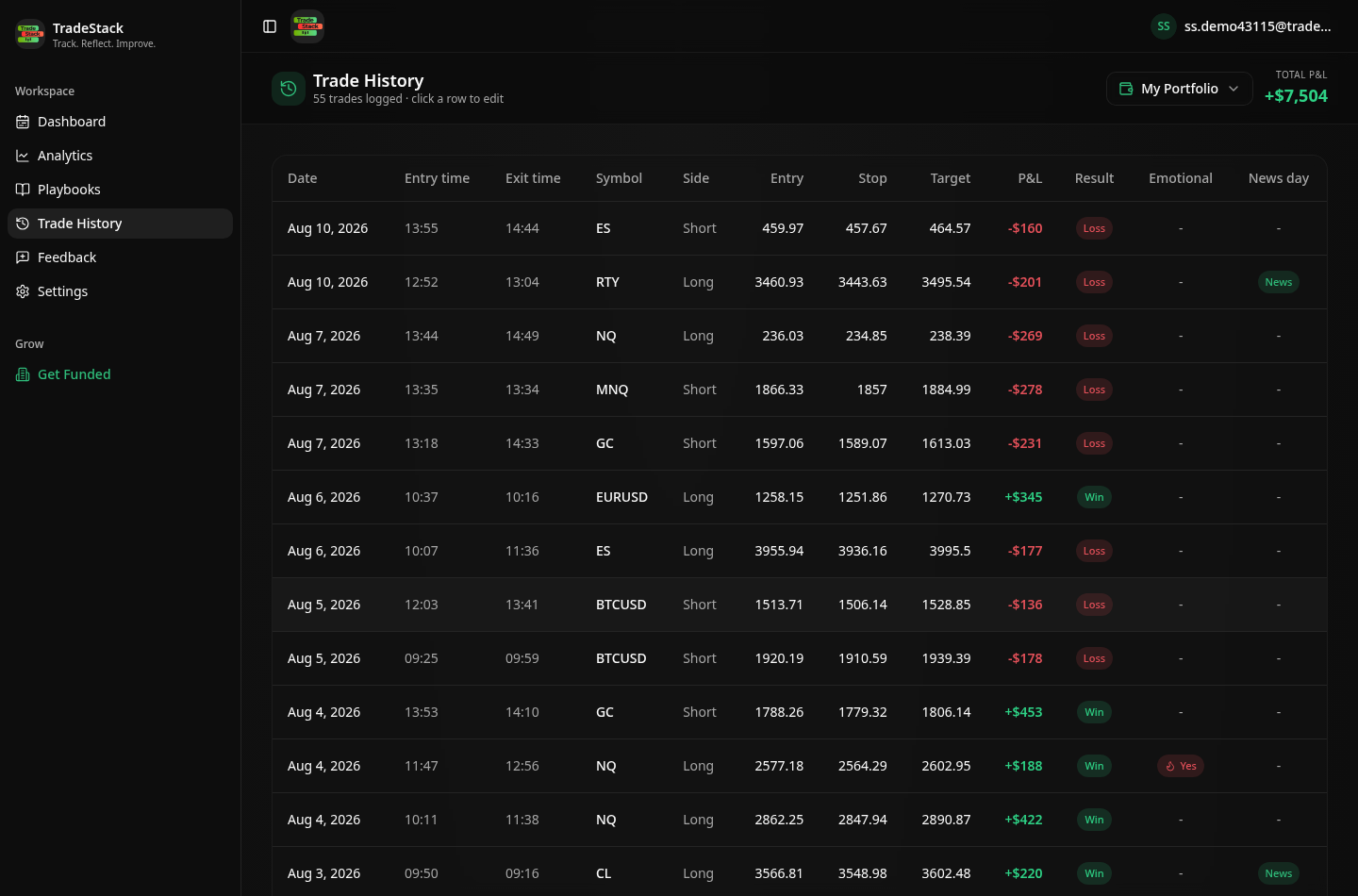
What the import looks like
When the export does not look right
My Flex Query has no P/L column
Newer templates dropped the realized P/L field. That is fine — TradeStack pairs executions FIFO and computes realized P&L itself, so the import still produces correct numbers.
The Activity Statement will not import
Export it as CSV rather than PDF, and keep the section headers intact. TradeStack locates the Trades section and ignores dividends, interest and corporate actions.
Options P&L is 100x too small
The contract multiplier could not be resolved because the description column was excluded. Add Description or Multiplier to the Flex Query and re-export.
Currency conversions appear as trades
FX conversion rows in an Activity Statement look like trades. Filter them out in the Flex Query by limiting the asset class to stocks, futures and options.
The Flex Query returns an error
Flex Web Service tokens expire. Regenerate the token in Client Portal under Settings, and confirm the query ID matches the saved Trades query.
Frequently asked
Flex Query or Activity Statement?
Either works. A Trades Flex Query is cleaner because it contains only executions.
Are multi-currency accounts supported?
Yes, P&L is imported as reported in the statement.
Other broker guides
What to do with the data once it is in
TradeStack auto-detects your Interactive Brokers (IBKR) export and builds your daily P&L calendar, win rate, profit factor and expectancy. Free forever, no card required.
Start free