How to export trades from TradeStation
Open the Accounts window, select Orders or Trades, right-click the grid and choose Export/Send to Excel, then save as CSV.
TradeStation keeps a full record of every order and execution you place, but the platform itself gives you very little in the way of review. You get a blotter, a P&L figure and an account statement. What it does not give you is a day by day view of how you traded, which setups paid and which ones quietly bled the account. That is the gap a journal fills, and the fastest way to fill it is a CSV export.
This page covers the exact click path in the TradeStation desktop platform and the web platform, what each exported column means, how TradeStack turns raw executions into completed round-turn trades, and what to do when the export looks wrong. It takes about three minutes end to end, and you do not have to map a single column by hand.
Everything here works the same for stocks, options and futures accounts, including micro contracts, and it works for both funded and simulated accounts.
Step by step
- 1Open TradeStation and go to the Accounts window.
- 2Select the Orders or Trades tab for the account you trade.
- 3Set the date range.
- 4Right-click inside the grid and choose Export or Send to Excel.
- 5Save the file as CSV.
- 6In TradeStack, click Import trades and drop the CSV in.
What TradeStack does with the file
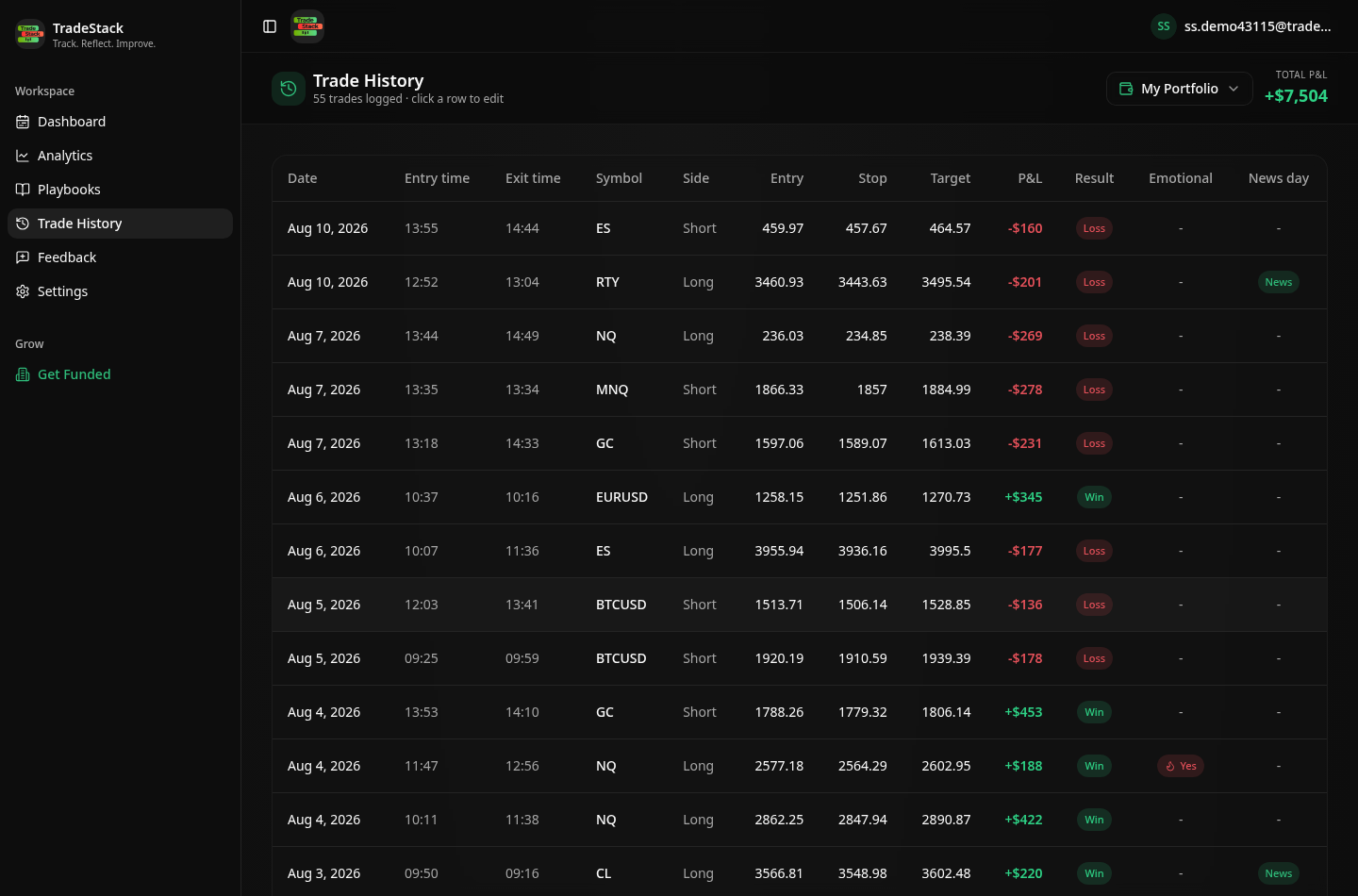
TradeStation exports executions. TradeStack pairs opposing fills per symbol into completed trades and applies commissions.
Which columns TradeStack reads
You never map columns by hand. The importer fingerprints the TradeStation header row and reads the fields below; anything else in the file is carried along and stays editable on the trade.
| Export column | How it is used |
|---|---|
| Symbol | Becomes the instrument on the trade. Futures roots such as ES, NQ, MES and MNQ are recognised so the correct contract multiplier is applied. |
| Side / Action (Buy, Sell, Sell Short, Buy to Cover) | Sets trade direction and tells the pairing engine which fills open a position and which close it. |
| Quantity / Filled Qty | Position size. Partial fills on the same order are combined rather than counted as separate trades. |
| Price / Filled Price | Entry and exit price. Where several fills close one position, the weighted average price is used. |
| Filled Date / Time | Sets the entry and exit timestamps, which drive the daily P&L calendar and the holding-time stats. |
| Commission and Fees | Subtracted from gross P&L so the journal total matches your TradeStation statement. |
| Account ID | Optional. Useful if you export several accounts at once and want to split them into separate portfolios. |
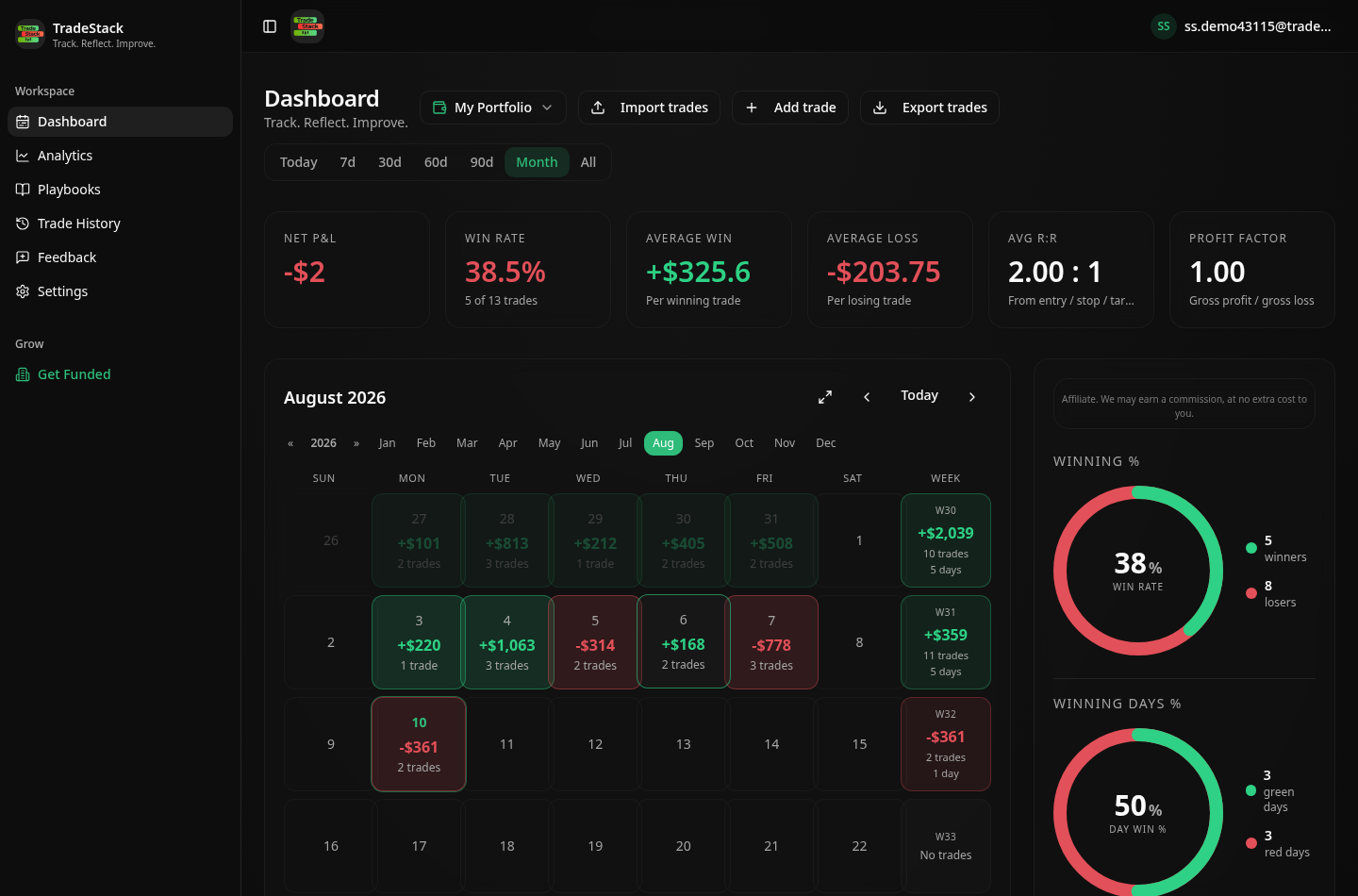
What the import looks like
When the export does not look right
The export only has open orders in it
You exported the Orders tab with a status filter still applied. Set the status filter to Filled, or switch to the Trades tab, before right-clicking to export.
The file saved as .xlsx and will not import
Send to Excel produces a workbook. Open it and use Save As with the CSV UTF-8 format, then import that file. TradeStack reads CSV text, not workbook files.
My P&L looks doubled
That happens when you export both the Orders and the Trades tab and import both files. Import one or the other, not both. If you already imported twice, duplicate rows are skipped on re-import, so re-importing the correct file is safe.
Futures P&L is far too small
Check the symbol column made it into the export. Without a symbol TradeStack cannot apply the contract multiplier, so a 10 point ES move looks like $10 instead of $500.
Dates import a day off
TradeStation can export in the account timezone rather than yours. Nothing breaks, but a late evening trade may land on the next calendar day. You can drag the trade to the correct day inside the journal.
Nothing appears after import
The date range in the export was probably empty. Widen it in the Accounts window and export again, then confirm the file has more than a header row before importing.
Frequently asked
Does the web platform export?
Yes, the web trading platform can export order history as CSV too.
Are futures contracts supported?
Yes, including micro contracts.
How far back can I export from TradeStation?
The Accounts window covers your recent activity, and older history is available through the monthly account statements in Client Center. Both import, so you can backfill several years in a few passes.
Does TradeStack import options trades from TradeStation?
Yes. Each option contract imports as its own symbol and multi-leg positions pair leg by leg.
Will importing overwrite trades I already logged by hand?
No. Imported rows are matched against what is already in the journal and duplicates are skipped, so manual notes, screenshots and playbook tags stay attached.
Is there a limit on how many TradeStation trades I can import?
No. Imports are unlimited and free, and there is no card required to use the journal.
Other broker guides
What to do with the data once it is in
TradeStack auto-detects your TradeStation export and builds your daily P&L calendar, win rate, profit factor and expectancy. Free forever, no card required.
Start free