How to export trades from TradingView
Open the Strategy Tester or Trading Panel, go to the List of Trades / History tab, and use the export icon to download a CSV.
TradingView is where most traders read the market and where almost nobody reviews their results, because the platform stores your trades as a list that disappears the moment you close the panel. Exporting that list gives you a permanent record and, once journaled, a daily P&L calendar plus expectancy and profit factor across every strategy you run.
This page covers exporting from both the Trading Panel (broker-connected and paper trades) and the Strategy Tester (backtests), which columns matter, and how TradeStack pairs the separate entry and exit rows that TradingView produces.
Keep backtests in a separate portfolio from live results so your real statistics never get diluted by simulated ones.
Step by step
- 1Open your chart in TradingView.
- 2Open the bottom panel and select Trading Panel (for broker/paper trades) or Strategy Tester (for a strategy).
- 3Go to the History or List of Trades tab.
- 4Click the export/download icon and choose CSV.
- 5In TradeStack, click Import trades and drop the CSV in.
What TradeStack does with the file
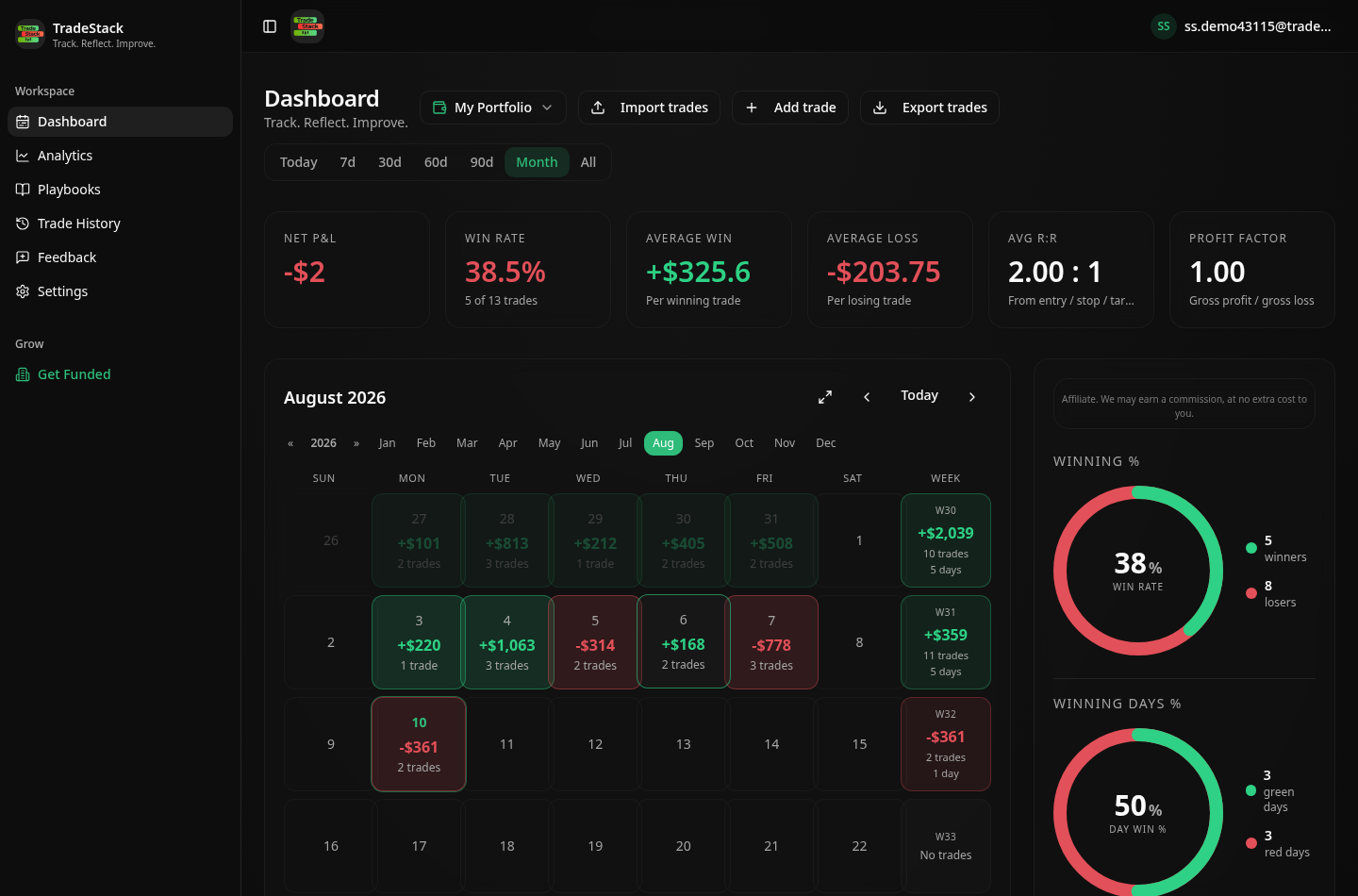
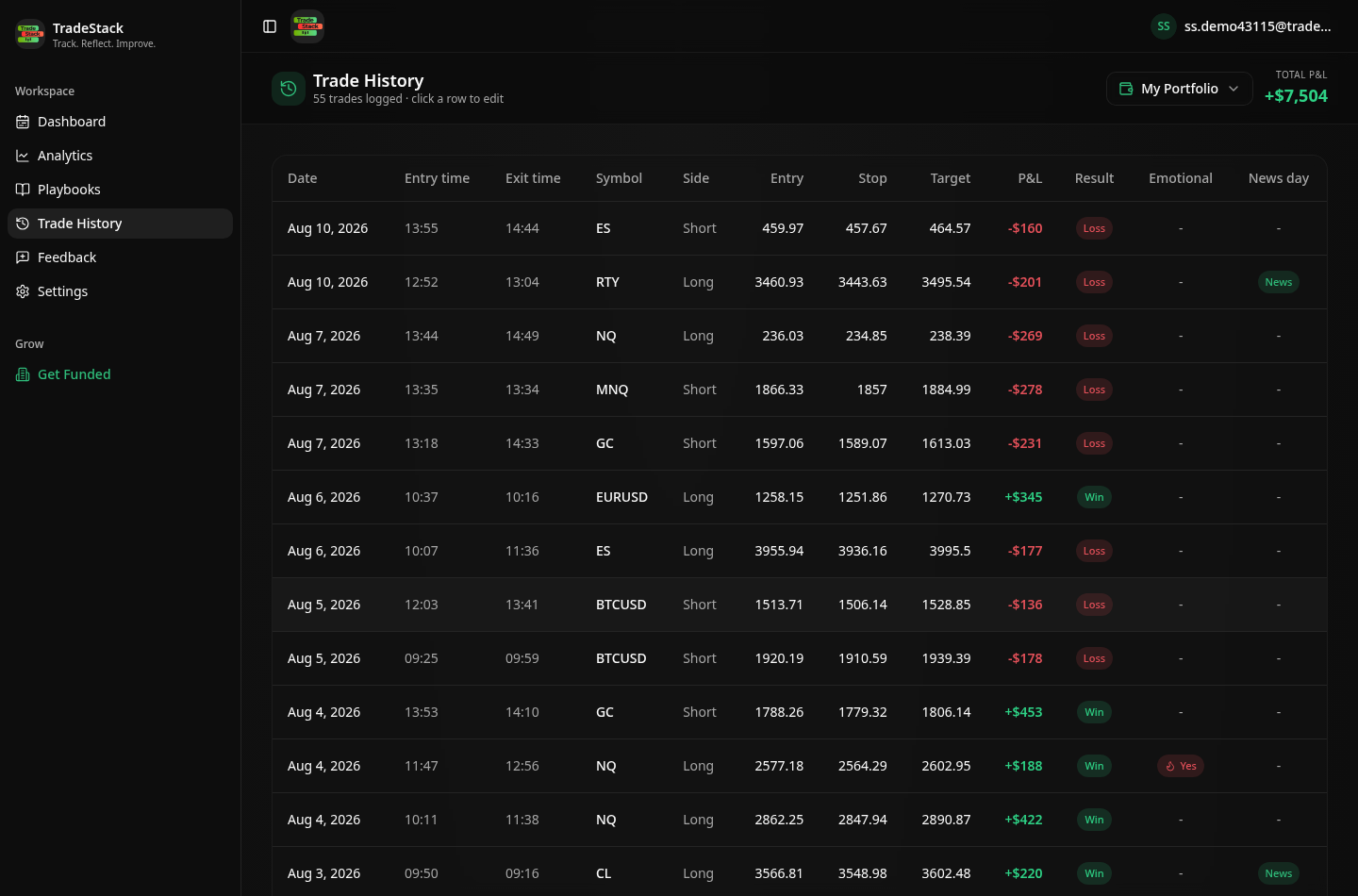
TradingView exports entry and exit rows separately for strategies. TradeStack pairs them into round-turn trades and builds the daily P&L calendar.
Which columns TradeStack reads
You never map columns by hand. The importer fingerprints the TradingView header row and reads the fields below; anything else in the file is carried along and stays editable on the trade.
| Export column | How it is used |
|---|---|
| Symbol / Ticker | Becomes the instrument, including exchange-prefixed tickers such as CME_MINI:ES1! and forex pairs. |
| Type / Side (buy, sell, long, short) | Sets direction and marks which row opens the position and which closes it. |
| Signal / Trade number | Used to pair the entry row with its matching exit row in Strategy Tester exports. |
| Date/Time | Sets entry and exit timestamps; the exit timestamp decides the calendar day. |
| Price | Entry and exit price for the paired trade. |
| Quantity / Contracts | Position size, used with the instrument multiplier to compute realized P&L. |
| Profit | Used when present. Strategy Tester exports report profit per closed trade, which is imported as the realized result. |
What the import looks like
When the export does not look right
The export only has entries, no exits
You exported the List of Trades while the strategy still had an open position. Close or ignore the final unpaired row; TradeStack skips entries without a matching exit.
Numbers use commas as decimal separators
Change TradingView's regional format, or open the file and save it with a period as the decimal separator, before importing.
Paper trading history is empty
Paper trading history is per browser session on some accounts. Export before logging out, and export regularly rather than at month end.
Backtest results mixed with live trades
Import the Strategy Tester file into a separate portfolio. Portfolio switching keeps the two sets of statistics apart.
Currency values look off on futures
Confirm the ticker made it into the export. A bare symbol without the exchange prefix can miss the multiplier lookup.
Frequently asked
Does paper trading history work?
Yes. Paper and connected-broker histories both export as CSV and both import.
Can I journal a backtest?
Yes. Import the Strategy Tester list of trades into a separate portfolio.
Other broker guides
What to do with the data once it is in
TradeStack auto-detects your TradingView export and builds your daily P&L calendar, win rate, profit factor and expectancy. Free forever, no card required.
Start free